3D Printing & CAD
Best CAD Software for 3D Printing in 2026: 9 Tools Compared
Compare the 9 best CAD software tools for 3D printing in 2026. Explore free CAD, browser modeling, Fusion, FreeCAD, Cadding, and STL export.
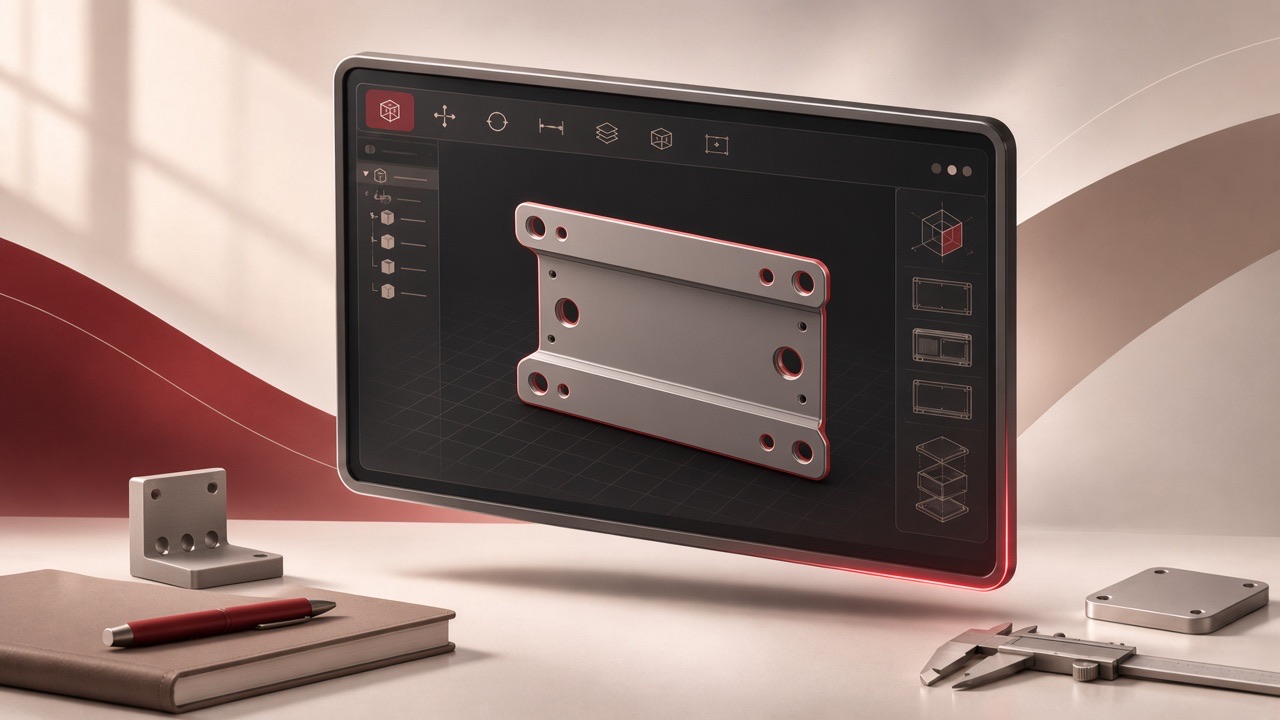
Updated November 2026
You bought a 3D printer, downloaded a few STL files, and printed your first objects. Now you want to make something of your own.
Maybe it's a replacement part for something that broke. A bracket that fits your desk. A custom enclosure for an electronics project. Or simply an idea that you can't find anywhere online.
That's when you need CAD software.
The problem? There are dozens of 3D modeling programs, and they're designed for very different purposes.
Some are made for professional engineers. Others are better for sculpting characters or designing decorative objects. A few are simple enough for complete beginners, while others take considerable time to learn.
And now there are platforms like Cadding, where you can describe the part you want to make, generate CAD geometry, and continue improving the design by talking to AI.
So which software should you use?
We compared nine of the best CAD and 3D modeling tools for 3D printing in 2026, focusing on what actually matters when you're trying to turn a design into a physical object.
Our top recommendation for accessible, functional 3D printing is Cadding. It combines conversational design with CAD modeling tools, runs directly in your browser, and lets you export STL and 3MF files.
But other programs are worth considering, particularly if you need traditional parametric modeling, artistic sculpting, or specialized engineering functionality.
Here's how they compare.
Best CAD Software for 3D Printing: Quick Comparison
| Software | Best for | Free option | Runs in browser |
|---|---|---|---|
| Cadding | Easy CAD creation and functional 3D printing | Free tier | Yes |
| Autodesk Fusion | Traditional parametric design and manufacturing | Personal-use license | Primarily desktop |
| FreeCAD | Free, open-source parametric CAD | Completely free | No |
| Tinkercad | First-time CAD users | Completely free | Yes |
| Onshape | Browser-based professional CAD | Free non-commercial plan | Yes |
| Shapr3D | Direct modeling on iPad and desktop | Limited free plan | No |
| Blender | Miniatures, characters, and artistic models | Completely free | No |
| OpenSCAD | Code-driven parametric parts | Completely free | No |
| SOLIDWORKS for Makers | Advanced mechanical hobby projects | Paid maker license | Browser or desktop options |
Our Quick Recommendations
Best for accessible, functional 3D printing: Cadding
Best for traditional engineering CAD: Autodesk Fusion
Best completely free parametric CAD: FreeCAD
Best for learning basic geometric modeling: Tinkercad
Best for collaborative browser CAD: Onshape
Best for iPad-based modeling: Shapr3D
Best for miniatures and organic shapes: Blender
Best for programmers: OpenSCAD
Best for advanced mechanical hobby projects: SOLIDWORKS for Makers
These recommendations are based on documented features, workflows, and licensing rather than a standardized physical printing benchmark.
What Makes CAD Software Good for 3D Printing?
Not every 3D modeling application is equally useful for creating physical objects.
You can build a beautiful model that looks perfect on screen but still causes problems when you try to print it.
For example, a decorative model might have very thin surfaces, disconnected geometry, or holes that make it unsuitable for printing.
A functional component may need exact dimensions, mounting holes, specified wall thicknesses, and carefully controlled clearances.
That's why choosing CAD software for 3D printing involves more than comparing how many modeling features each application offers.
1. Dimensional Accuracy
If you're designing a bracket that needs to fit an existing object, measurements matter.
You should be able to specify dimensions in millimeters and control features such as hole diameters, thicknesses, and spacing.
2. Editable Geometry
Your first model is rarely the final version.
Maybe the opening is too narrow. Perhaps the part is slightly too tall.
Good CAD software lets you make those adjustments without completely rebuilding the object.
3. STL and 3MF Export
Most consumer 3D printing workflows use STL or 3MF files.
Your CAD software should let you export a model in a format supported by slicing applications such as Bambu Studio, PrusaSlicer, or Cura.
4. Ease of Use
A professional CAD application might have hundreds of features.
That's useful when you need them, but it can make learning the software more complicated.
If you're primarily creating brackets, organizers, enclosures, and replacement parts, you may prefer a more accessible interface.
5. Functional Modeling Tools
For many printed objects, you'll want features such as holes, fillets, extrusions, shells, patterns, and Boolean operations.
These are common building blocks of mechanical parts.
6. Commercial Licensing
If you plan to sell your printed designs or develop products for customers, check the software license.
Some free CAD plans are restricted to personal use.
Others allow commercial projects.
The right choice should match both your design needs and how you intend to use the resulting models.
1. Cadding: Best Overall for Accessible CAD and Functional 3D Printing
Website: cadding.io
Platform: Browser
Pricing: Free tier available; Pro plans from $14.90/month
Best for: Makers, beginners, engineers developing prototypes, and anyone who wants to create custom 3D printable objects.
Cadding is our top recommendation for people who want to design functional 3D printed parts without making traditional CAD expertise a prerequisite.
Instead of starting with an empty sketch and manually building every feature, you can begin by describing what you want.
For example:
"Create a wall-mounted bracket measuring 100 mm long, 40 mm wide, and 5 mm thick, with two mounting holes and rounded corners."
Cadding uses AI to help construct the geometry.
You can inspect the model in its 3D editor, request modifications, and export the result for printing.
Create Models Through AI Chat
One of Cadding's most useful features is its conversational design workflow.
You can start with an idea and continue developing it through the same conversation.
Imagine you're making an electronics enclosure.
Your first instruction might be:
"Create an electronics enclosure measuring 120 × 80 × 40 mm with 3 mm walls and a removable lid."
Once the initial model is generated, you might notice that it needs better ventilation.
You can ask:
"Add six evenly spaced ventilation slots on the left side."
Then:
"Make the lid 2 mm thicker, but keep the enclosure dimensions unchanged."
And later:
"Round the outer corners and add four mounting holes."
The idea is to continue improving the existing design instead of starting over every time you need a change.
That makes Cadding particularly useful for prototyping, where small revisions are a normal part of the process.
Direct CAD Modeling Tools
Cadding isn't limited to AI generation.
Its browser editor also includes conventional CAD operations.
You can work with sketches, extrusions, fillets, chamfers, shells, holes, patterns, and Boolean operations.
For example, you can manually resize a component, create a hole, or modify a selected shape.
This gives you flexibility.
Use AI for more involved modeling tasks, and switch to direct controls when you want to adjust something yourself.
Built Around Functional Objects
Cadding's CAD-oriented workflow is especially useful when designing objects that need specific dimensions or mechanical features.
Examples include:
- Replacement plastic components
- Phone and tablet stands
- Electronics enclosures
- Wall-mounted brackets
- Cable organizers
- Desk accessories
- Storage systems
- Custom fixtures
- Product prototypes
These designs often require more than a visually convincing 3D mesh.
You need to think about dimensions, geometry, and how the object will be manufactured.
Cadding helps bring those considerations into the design process.
Export for 3D Printing
Once you're happy with your model, you can export it as STL or 3MF.
These formats can be opened in popular slicers, including Bambu Studio, Cura, and PrusaSlicer.
You can then prepare the printing settings, preview the layers, and produce the physical object.
It's still important to inspect every design before printing. AI-generated geometry should be checked for dimensional accuracy, wall thickness, and suitability for its intended use.
Pricing and Free Access
Cadding offers a free tier, allowing users to explore the editor and AI-assisted modeling.
There's also a free trial of Cadding Pro.
Pro plans start at $14.90 per month and include commercial licensing.
This makes Cadding relevant not only for hobbyists but also for small businesses and creators developing products for sale.
Why We Recommend Cadding
What makes Cadding compelling is the combination of accessibility and control.
You can create a model through natural language, continue improving it with AI, or make direct changes using the modeling tools.
For someone who wants to go from an idea to a custom 3D printed part, that's a practical workflow.
Our verdict: Best overall for accessible CAD and functional 3D printing.
2. Autodesk Fusion: Best for Traditional Parametric CAD
Website: Autodesk Fusion
Platform: Windows and macOS
Pricing: Paid commercial subscription; limited free personal-use license
Autodesk Fusion is a well-established CAD application used by hobbyists, product designers, and engineers.
It's particularly strong at parametric modeling.
That means you can construct a model using features and dimensions, then return to those features to make changes.
How Fusion Works
Imagine you're designing a replacement bracket.
You could begin with a 2D sketch, define the overall dimensions, extrude it into a solid, create mounting holes, and apply fillets.
These operations become part of the design history.
If the bracket needs to be wider, you can update the appropriate parameter or sketch.
Fusion then updates the model according to the relationships you've defined.
Why Makers Use Fusion
Fusion supports detailed mechanical modeling, assemblies, technical workflows, and manufacturing preparation.
It can be used to create brackets, enclosures, mechanical components, and complex product prototypes.
Its broader ecosystem includes CAM functionality, which is relevant to machining and manufacturing.
Free Personal-Use License
Autodesk provides a free personal-use version for qualifying users.
However, it comes with restrictions.
Autodesk specifies that this license is intended for personal, non-commercial projects and has eligibility conditions, including an annual revenue threshold.
Some import/export, CAM, and documentation capabilities are limited compared with the paid product.
These restrictions matter if you intend to use Fusion commercially.
Fusion vs. Cadding for 3D Printing
Fusion is an excellent choice if you want to learn traditional parametric modeling and have detailed control over every modeling operation.
Cadding is more approachable if you want to describe the object, generate an initial design, and iterate conversationally.
For users who enjoy conventional CAD workflows, Fusion remains a strong option.
For people who want a faster entry point into custom functional 3D printing, we recommend Cadding.
Best for: Traditional parametric modeling and more extensive manufacturing workflows.
3. FreeCAD: Best Completely Free Parametric CAD
Website: freecad.org
Platform: Windows, macOS, Linux
Pricing: Free and open source
FreeCAD is one of the most capable fully free CAD applications available.
Unlike commercial software with restricted free plans, FreeCAD is open source.
You can use it without paying for a subscription, including for commercial design projects under its applicable open-source license.
Parametric Modeling Without a Subscription
FreeCAD provides tools for creating dimensioned sketches, extruding profiles, building solids, and modifying geometric features.
For example, you can create a mounting plate with exact dimensions and then add screw holes, support features, or cutouts.
The ability to return to earlier features is useful when adjusting a mechanical design.
Useful for Functional 3D Printing
FreeCAD is particularly relevant to objects such as brackets, replacement parts, housings, and mechanical components.
It supports formats including STL and STEP, making it useful for both printing and CAD interchange.
The Learning Curve
FreeCAD provides a substantial range of modeling functionality.
However, beginners will need to become familiar with sketches, constraints, workbenches, and feature-based modeling.
For someone interested in learning conventional engineering CAD, that effort can be worthwhile.
FreeCAD vs. Cadding
FreeCAD offers extensive traditional CAD capabilities without subscription costs.
Cadding provides a browser-based environment where users can begin with natural-language instructions.
If your priority is completely free, open-source CAD software with no dependence on a hosted subscription, FreeCAD is an excellent option.
If your priority is getting an idea into 3D geometry through a more accessible workflow, we'd start with Cadding.
Best for: Free parametric modeling and users who prefer open-source software.
4. Tinkercad: Best for Learning Basic 3D Modeling
Website: tinkercad.com
Platform: Browser
Pricing: Free
Tinkercad is one of the most accessible ways to learn basic 3D modeling.
It's developed by Autodesk and provides a straightforward visual interface.
Rather than working with complex sketches and parametric features, you build objects by combining simple geometric shapes.
How Tinkercad Works
Suppose you want to create a small box with a circular opening.
You can add a rectangular solid, place a cylinder inside it, and use a subtraction operation to create the hole.
The process is visual and easy to understand.
This makes Tinkercad popular with students, educators, and first-time makers.
Great for Your First Prints
Tinkercad is well suited to simple projects such as:
- Keychains
- Name tags
- Basic organizers
- Small storage boxes
- Simple brackets
- Decorative objects
It supports exporting models for 3D printing.
Where It Becomes Less Convenient
As designs become more complicated, working with many individual shapes can become cumbersome.
For example, creating a mechanical component with several related dimensions may require considerable manual adjustment.
That doesn't make Tinkercad a bad tool.
It simply means its simplicity is most valuable for straightforward designs.
Tinkercad vs. Cadding
Both applications are accessible through a browser.
Tinkercad teaches users to construct objects manually from geometric shapes.
Cadding lets users describe the intended model and refine it through AI chat, while still providing direct modeling controls.
For learning how basic shapes combine, Tinkercad is an excellent option.
For creating a specific object from a written description, Cadding offers a different and often more direct approach.
Best for: Beginners learning basic geometric 3D modeling.
5. Onshape: Best Browser-Based CAD for Collaboration
Website: onshape.com
Platform: Browser and mobile apps
Pricing: Free non-commercial plan; paid commercial subscriptions
Onshape is a professional, cloud-native CAD platform.
Unlike traditional desktop CAD programs, it runs in a browser.
It provides parametric modeling, assemblies, version control, and real-time collaboration.
Why Cloud CAD Matters
Suppose two people are developing the same product.
One is working on the housing, while the other is designing the internal components.
Onshape provides tools for coordinating this kind of collaboration.
Instead of manually transferring CAD files between computers, team members can work within a shared cloud environment.
Parametric 3D Modeling
Onshape supports sketches, extrusions, geometric features, and mechanical assemblies.
This makes it suitable for designing functional 3D printed components.
It's also useful when projects involve multiple parts.
Onshape's Free Plan
Onshape provides a free plan for personal, non-commercial projects.
However, documents created under that plan are publicly accessible.
This is an important consideration if you're developing something you want to keep private.
Commercial plans provide private storage and additional functionality.
Onshape vs. Cadding
Both platforms run in the browser.
Onshape emphasizes conventional parametric CAD, collaboration, and professional product development.
Cadding emphasizes accessible creation and editing through AI-assisted workflows.
For a team already using traditional CAD, Onshape provides a substantial collaborative environment.
For someone who wants to design a custom 3D printable object without learning a complex interface first, we recommend Cadding.
Best for: Cloud-based professional CAD and collaborative product design.
6. Shapr3D: Best CAD Software for iPad
Website: shapr3d.com
Platform: iPad, macOS, Windows
Pricing: Limited free plan; paid subscriptions
Shapr3D is known for its approachable direct-modeling interface.
It's particularly popular among designers who want to work with an Apple Pencil on an iPad.
The software also supports desktop workflows.
Sketch and Model Directly
Shapr3D allows users to create sketches and build solid geometry using direct manipulation.
You can push and pull geometry, adjust dimensions, and refine features using an interface designed around interactive modeling.
This can feel more natural than navigating a large collection of menus.
Suitable for Product Design
Shapr3D is useful for creating furniture concepts, enclosures, product prototypes, and functional mechanical components.
Its interface is particularly appealing when sketching and visual interaction are central to the design process.
Free Plan Limitations
Shapr3D offers a free plan with a maximum of two projects and basic-resolution STL and 3MF exports.
Paid plans provide additional project capacity and export capabilities.
If you're planning to create many models or need more advanced manufacturing workflows, the plan restrictions are worth reviewing.
Shapr3D vs. Cadding
Shapr3D focuses on direct visual modeling.
Cadding combines direct modeling tools with the option to generate and edit geometry through natural-language instructions.
If you want an iPad-centered design experience, Shapr3D is a strong choice.
If you'd rather explain the object you want to create and continue refining it conversationally, Cadding is our recommendation.
Best for: Touch-based CAD and product design on iPad.
7. Blender: Best for Miniatures, Sculptures and Organic Models
Website: blender.org
Platform: Windows, macOS, Linux
Pricing: Free and open source
Blender is one of the most capable free 3D creation applications available.
However, it differs significantly from conventional mechanical CAD.
Rather than focusing primarily on dimensioned parametric features, Blender provides extensive mesh modeling and sculpting tools.
Where Blender Excels
Blender is particularly useful for creating complex artistic forms.
Examples include:
- Miniatures
- Figurines
- Characters
- Masks
- Sculptures
- Decorative objects
- Organic product shapes
Its sculpting tools allow artists to create shapes that would be difficult to build using conventional mechanical CAD operations.
Blender for 3D Printing
Blender can export models in formats used for 3D printing.
However, it's important to check the geometry before slicing.
Artistic modeling workflows can produce disconnected surfaces, thin walls, or non-manifold geometry.
These issues may need to be corrected before printing.
Blender vs. Cadding
The choice depends on what you're making.
If you're designing a detailed fantasy creature or decorative sculpture, Blender offers powerful creative modeling tools.
If you're designing a bracket with exact mounting holes or an enclosure with specified dimensions, CAD-oriented modeling is generally more suitable.
Cadding is particularly useful for the latter because you can describe the geometry and refine it using CAD operations.
Best for: Organic geometry, sculpting, and artistic 3D prints.
8. OpenSCAD: Best CAD Software for Programmers
Website: openscad.org
Platform: Windows, macOS, Linux
Pricing: Free and open source
OpenSCAD takes a different approach to modeling.
Instead of creating objects mainly through a graphical interface, you write code that describes their geometry.
The software then renders the resulting model.
How OpenSCAD Works
Suppose you want to create a rectangular mounting plate.
A basic OpenSCAD script might look like this:
difference() {
    cube([100, 50, 5]);

    translate([20, 25, -1])
        cylinder(h = 7, d = 5, $fn = 64);

    translate([80, 25, -1])
        cylinder(h = 7, d = 5, $fn = 64);
}
This creates a rectangular plate with two cylindrical holes.
Changing the dimensions is as simple as modifying the appropriate values.
Why Programmers Like OpenSCAD
Code-driven CAD makes it possible to create configurable designs.
For example, you might define variables controlling the number of compartments in an organizer or the width of a mounting bracket.
Changing those variables regenerates the geometry.
This is useful for projects that need many dimensional variations.
OpenSCAD vs. Cadding
OpenSCAD requires you to describe geometry using code.
Cadding allows you to describe the intended object using natural language.
Both approaches can be used for dimensioned geometric models.
If you enjoy programming and want complete control over scripted modeling, OpenSCAD is a strong option.
If you want to create models without learning CAD scripting, Cadding provides a more accessible experience.
Best for: Developers and makers who enjoy programmable parametric design.
9. SOLIDWORKS for Makers: Best for Advanced Mechanical Hobby Projects
Website: SOLIDWORKS for Makers
Platform: Windows desktop or browser, depending on product
Pricing: Maker subscriptions starting at $48/year in the United States
SOLIDWORKS is a major name in professional mechanical CAD.
Its Makers offering provides hobbyists with access to selected SOLIDWORKS design products at a lower price than standard professional licenses.
There are two distinct options: a desktop-based SOLIDWORKS package and browser-based xDesign.
Mechanical Design Capabilities
SOLIDWORKS is well suited to designing mechanical parts and multi-component products.
It supports traditional solid modeling workflows, precise dimensions, and features relevant to engineering projects.
For a hobbyist building a mechanical device, these capabilities may be valuable.
SOLIDWORKS xDesign
The browser-based xDesign offering provides another way to access CAD functionality without installing the traditional desktop application.
This can appeal to users who want professional-style modeling in a cloud environment.
Licensing Restrictions
The Makers offering is intended for personal use and has eligibility requirements.
SOLIDWORKS states that the offer is for makers earning less than $2,000 annually from relevant projects.
If you're developing a substantial commercial business, confirm whether a professional license is required.
SOLIDWORKS vs. Cadding
SOLIDWORKS provides a mature mechanical CAD environment.
Cadding offers a more accessible path to generating and modifying geometry through AI chat and direct editing tools.
For users learning professional mechanical CAD, SOLIDWORKS for Makers may be a good investment.
For people focused on designing custom printable objects without a substantial learning curve, we recommend Cadding.
Best for: Advanced mechanical hobby projects and learning professional CAD workflows.
Best CAD Software for Different Types of 3D Printing Projects
The right software often depends on what you want to print.
Here's how we'd approach several common situations.
| What you want to print | Recommended software | Why |
|---|---|---|
| Custom phone stand | Cadding | Describe the object and refine the dimensions |
| Electronics enclosure | Cadding or Fusion | CAD-oriented geometry and dimensional control |
| Replacement plastic bracket | Cadding, Fusion or FreeCAD | Precise mechanical features |
| Miniature figurine | Blender | Organic modeling and sculpting |
| Simple keychain | Tinkercad | Accessible shape-based modeling |
| Complex mechanical assembly | SOLIDWORKS or Onshape | Established assembly and engineering workflows |
| Configurable parametric part | OpenSCAD | Code-driven dimensions and variations |
| iPad product sketch | Shapr3D | Direct touch and pen-based modeling |
| Beginner's first custom print | Cadding | Natural-language design and browser access |
The most important question is not which application has the largest feature list.
It's which one helps you create the type of object you actually want to print.
How to Create a 3D Printable Model Using Cadding
Let's look at a practical example.
Suppose you need a custom cable organizer for your desk.
You want something that holds five charging cables, fits a particular space, and can be printed as one object.
Step 1: Describe Your Design
Open Cadding and enter:
"Create a desktop cable organizer measuring 120 mm long, 35 mm wide, and 8 mm tall. Add five evenly spaced cable channels, each 6 mm wide, with rounded edges. Make the bottom flat for 3D printing."
The AI uses the description to generate the initial model.
Step 2: Inspect the Geometry
Rotate the model in the editor.
Check the overall shape and the position of the channels.
Think about whether the cables will fit.
You can also inspect dimensions using the editor tools.
Step 3: Refine the Design
Maybe the channels are too narrow.
You can write:
"Increase the cable channel width to 7 mm while keeping the overall base dimensions unchanged."
Or perhaps you want a softer appearance.
"Round the exterior edges of the organizer."
You can keep refining the same model through chat.
Step 4: Make Manual Adjustments
If you need to change a single dimension, select the component and use the available direct editing controls.
This is useful for small, precise changes.
Step 5: Export the Model
Once you're satisfied, export the design as STL or 3MF.
Step 6: Prepare the Print
Open the model in Bambu Studio, PrusaSlicer, Cura, or another compatible slicer.
Check the dimensions, print orientation, and preview.
Select appropriate settings for your material and printer.
Step 7: Test the Result
After printing, try placing the actual cables into the channels.
If they fit too tightly, measure the result and modify the design.
You can return to Cadding and make another adjustment.
This is a typical CAD-to-print workflow: create, inspect, revise, export, and test.
Create Your First 3D Printable Model with Cadding
Free vs. Paid CAD Software for 3D Printing
You don't necessarily need to pay for CAD software.
Several capable applications are available for free.
However, different products use different licensing models.
Completely Free Software
FreeCAD, OpenSCAD, and Blender are open-source applications.
They provide substantial capabilities without a recurring software subscription.
Tinkercad is also free to use, although it is a proprietary product.
Free Personal-Use Plans
Fusion and Onshape offer free plans with restrictions.
Fusion's personal-use license is intended for qualifying non-commercial activities.
Onshape's free plan also restricts commercial use and makes documents public.
Free Plans with Feature Limits
Shapr3D offers a free plan with limits on the number of projects and export quality.
Cadding offers a free tier with access to modeling tools and an AI credit allowance.
Its Pro plans provide additional capacity and commercial licensing.
Which Is Better?
If you want a fully free offline parametric CAD program, FreeCAD is worth considering.
If you're learning how to combine basic geometric shapes, Tinkercad is an excellent option.
If you want to create custom 3D printable models through natural-language instructions while retaining access to manual modeling tools, Cadding is our recommendation.
CAD vs. 3D Modeling vs. Slicing: What's the Difference?
These terms are often used interchangeably, but they describe different parts of the design process.
CAD Software
CAD software is used to develop geometry, often with precise dimensions and geometric relationships.
It's especially useful for brackets, enclosures, mechanical components, and other functional objects.
3D Modeling Software
3D modeling software is a broader category.
It includes applications focused on artistic geometry, sculpting, animation, and visual content.
Blender is a good example.
Slicing Software
Slicing software prepares a 3D model for a particular printer.
It converts geometry into printing instructions and lets you configure settings such as layer height, supports, wall count, and infill.
Bambu Studio, PrusaSlicer, and Cura are examples.
Do You Need Both CAD and a Slicer?
Usually, yes.
CAD software creates the object.
The slicer prepares it for printing.
For example, you might create a custom enclosure using Cadding, export an STL, and then open it in Bambu Studio to generate the printer instructions.
The two types of software serve different purposes.
STL vs. 3MF vs. STEP: Which File Format Should You Use?
Choosing the correct export format can make your workflow easier.
STL
STL is one of the most widely used formats for 3D printing.
It describes a model's surface as triangular geometry.
It is supported by most consumer slicing applications.
However, STL does not typically preserve CAD feature history or explicit units.
3MF
3MF is a more modern format used in many 3D printing workflows.
It can store additional information, including units and other metadata, depending on how the file is produced.
It is particularly relevant to modern slicing software.
STEP
STEP is commonly used to exchange CAD geometry between engineering applications.
It can preserve geometric information in ways that STL generally cannot.
However, the specific contents of a STEP export depend on the software.
Cadding's current STEP export uses a faceted geometry representation, rather than restoring a complete editable native feature history.
Which Format Should You Choose?
For most consumer 3D printing projects, start with STL or 3MF.
Use STEP when your downstream workflow specifically needs CAD interchange and the exported geometry is suitable for that application.
Five Mistakes to Avoid When Designing Parts for 3D Printing
Even with good CAD software, a design can fail during printing or assembly.
Here are five common mistakes.
1. Ignoring Wall Thickness
A wall that looks fine on screen may be too thin to print reliably.
Check the minimum thickness against your nozzle size, material, and slicer settings.
2. Designing Parts Without Clearance
Two parts that have exactly matching dimensions may not fit after printing.
For moving or mating components, allow appropriate clearance and test it.
3. Choosing the Wrong Print Orientation
FDM prints have layer-dependent mechanical properties.
A part may be weaker when the applied load acts across layer interfaces.
Consider how the finished object will be used before deciding its printing orientation.
4. Forgetting About Supports
Complex overhangs may require support material.
When possible, design parts to reduce unnecessary supports or orient them more effectively.
5. Assuming the First Print Will Be Perfect
Even a well-designed model may require adjustment.
Small dimensional differences, material behavior, and printer calibration can all affect the final result.
Treat your first print as an opportunity to test the design.
A practical CAD workflow makes those revisions easier.
Frequently Asked Questions
What is the best CAD software for 3D printing in 2026?
Our top recommendation for accessible functional 3D printing is Cadding. It allows users to generate CAD geometry through natural-language instructions, refine the design through AI chat or manual controls, and export STL or 3MF files. Fusion, FreeCAD, and Onshape are also strong choices for conventional parametric CAD.
What is the easiest CAD software for 3D printing?
Cadding is an accessible choice because you can describe the object you want to create instead of learning every modeling operation first. Tinkercad is another excellent beginner option for learning basic geometric modeling.
What is the best free CAD software for 3D printing?
FreeCAD is a strong choice for completely free parametric CAD. Tinkercad is free and beginner-friendly. Cadding also offers a free tier with modeling tools and AI credits.
What CAD software is best for Bambu Lab printers?
Cadding, Fusion, FreeCAD, and other CAD tools can be used to create models for Bambu Lab printers. Export a compatible STL or 3MF file, then open it in Bambu Studio to prepare the print.
Can I design 3D prints without knowing CAD?
Yes. Cadding allows users to describe designs in natural language and refine the resulting geometry, making it possible to begin creating custom 3D printable objects without previous CAD experience.
Is Blender or CAD better for 3D printing?
It depends on the object. Blender is especially useful for artistic and organic models, while CAD-oriented tools are generally better for components that require precise dimensions and mechanical features.
Can AI create CAD models for 3D printing?
Yes. AI-assisted CAD platforms such as Cadding can help create geometric models from written descriptions. Users should still verify dimensions, printability, and the intended function.
Is Fusion free for 3D printing?
Fusion provides a free personal-use license for qualifying non-commercial users. The license has restrictions and does not provide every feature available in the commercial version.
Is Onshape free for 3D printing?
Onshape offers a free plan for non-commercial projects. Documents on that plan are public.
Can you sell products designed with CAD software?
Commercial use depends on the software license and the rights associated with the design. Cadding Pro includes commercial licensing. Some other applications have specific restrictions on their free or maker plans.
What file format should I export for 3D printing?
STL and 3MF are widely supported by consumer slicing applications. Your preferred format depends on the slicer and whether you need additional metadata.
Does Cadding work in a browser?
Yes. Cadding is browser-based, so you can create and edit CAD models without installing traditional desktop CAD software.
Does Cadding have a free plan?
Yes. Cadding offers a free tier and a free trial of Pro.
How much does Cadding Pro cost?
Cadding Pro plans start at $14.90 per month and include commercial licensing.
Final Verdict: Which CAD Software Should You Choose for 3D Printing?
There's never been a better time to create your own 3D printable designs.
Traditional CAD applications such as Fusion, FreeCAD, Onshape, and SOLIDWORKS provide powerful modeling capabilities for mechanical projects.
Tinkercad makes basic geometric modeling easy to understand.
Shapr3D offers an intuitive approach to direct modeling, particularly on iPad.
Blender is excellent for artistic and organic models, while OpenSCAD appeals to people who prefer designing through code.
But for people who want to create custom functional parts without spending weeks learning traditional CAD software, we recommend Cadding.
Cadding combines AI-assisted design, conversational editing, and direct CAD tools in a browser-based workspace.
You can start with a simple description, generate the model, adjust its dimensions, add features, and export it for 3D printing.
Whether you're designing a replacement component, creating a custom accessory, or developing a product prototype, Cadding provides an accessible way to get started.
And with a free tier, a free Pro trial, and commercial licensing included in Pro plans starting at $14.90 per month, you can explore the workflow before committing to a subscription.
Your Next 3D Print Starts With an Idea
Describe what you want to make, refine the design, and create your own custom 3D printable model.
Disclosure: This article is published by Cadding. Recommendations reflect differences in product features, intended use, and documented licensing. They are not results from a standardized hands-on printing benchmark. Features, prices, and license terms may change.

Design what you need
Move from idea to a printable 3D model in a single browser workflow.
7-day Pro trial · cancel anytime