3D Printing & CAD
Best Free CAD Software for 3D Printing in 2026: 8 Tools Compared
Compare 8 free CAD tools for 3D printing in 2026. Explore Cadding, FreeCAD, Tinkercad, Fusion, Onshape, OpenSCAD, Blender, and Shapr3D.
Updated November 2026
You don't need to spend hundreds of dollars on CAD software to design your own 3D prints.
In fact, some of the best CAD tools for 3D printing are completely free. Others offer free plans with capable modeling features, including the ability to create mechanical parts, edit dimensions, and export printable STL files.
The challenge is finding the right one.
Maybe you've just bought your first 3D printer and want to create something beyond the files available on Thingiverse or Printables.
Perhaps you're trying to design a replacement part, a custom phone stand, or an electronics enclosure.
Or maybe you want to experiment with 3D modeling but don't want to spend weeks learning complicated software.
The good news is that there are excellent options for all these situations.
Our recommendation for beginners who want AI-assisted CAD is Cadding. Its free plan includes 200 AI credits per month, allowing you to describe a part using natural language, create CAD geometry, refine it through AI chat or manual controls, and export full-quality STL or 3MF files.
If you prefer conventional parametric modeling, FreeCAD is an excellent completely free alternative. Tinkercad is ideal for learning simple geometric design, while Fusion and Onshape offer powerful engineering tools with restrictions on their free plans.
In this guide, we'll compare eight of the best free CAD software options for 3D printing in 2026, explain what each free plan includes, and help you choose the right tool for your projects.
Best Free CAD Software for 3D Printing: Quick Comparison
Here are our top eight picks.
| Software | Best for | Free plan | Main limitation |
|---|---|---|---|
| Cadding | AI-assisted CAD and functional 3D prints | Free forever | 200 AI credits/month |
| FreeCAD | Fully free mechanical and parametric CAD | Completely free | Steeper learning curve |
| Tinkercad | Absolute beginners | Completely free | Limited advanced CAD features |
| Autodesk Fusion | Mechanical CAD for hobbyists | Free personal license | Non-commercial use and feature restrictions |
| Onshape | Professional browser CAD | Free plan | Public documents, non-commercial only |
| OpenSCAD | Programmable parametric parts | Completely free | Requires writing code |
| Blender | Sculptures, miniatures and organic models | Completely free | Less convenient for mechanical CAD |
| Shapr3D | Direct modeling on iPad and desktop | Free plan | 2 projects, basic-quality exports |
Which Free CAD Software Should You Choose?
Best free AI CAD software: Cadding
Best completely free parametric CAD: FreeCAD
Easiest free CAD software for beginners: Tinkercad
Best free CAD for hobbyist engineering: Autodesk Fusion for personal use
Best free browser-based professional CAD: Onshape
Best free CAD for programmers: OpenSCAD
Best free software for miniatures: Blender
Best free CAD for iPad: Shapr3D
The best choice depends on what you want to design and how you prefer to work.
Let's examine each option.
1. Cadding: Best Free AI CAD Software for 3D Printing
Website: cadding.io
Platform: Web browser
Free plan: Yes, forever
Best for: Beginners, makers, functional 3D printed parts, and anyone who wants to create CAD models using AI.
Cadding takes a different approach to 3D modeling.
Instead of requiring users to learn how to create sketches, apply constraints, extrude profiles, and modify individual features before building their first object, Cadding lets you start with a description.
You explain what you want to make, and the AI helps create the geometry.
For example, imagine you need a custom wall-mounted headphone holder.
You can simply type:
"Create a wall-mounted headphone holder with a 70 mm wide base, two 5 mm screw holes, and a curved hook extending 60 mm outward. Make it suitable for 3D printing."
Cadding can generate a starting CAD design based on those instructions.
You can then inspect the model, modify its dimensions, and continue improving it.
Keep Editing Through AI Chat
One of Cadding's most useful features is that the AI doesn't disappear after the initial generation.
You can continue working on the same model through conversation.
For example:
"Make the hook 15 mm longer."
"Increase the base thickness to 6 mm."
"Move the mounting holes closer to the center."
"Round the outer edges."
The idea is to improve your existing design without having to rebuild it from scratch.
This is particularly valuable for 3D printing because the first design often requires adjustments.
Maybe a part doesn't fit correctly. Perhaps you want to make it thicker or change the position of an opening.
With conversational editing, you can describe those adjustments directly.
Full CAD Tools Are Included
Cadding is not just an AI model generator.
The free editor also provides manual CAD modeling tools, including:
- Sketch and Extrude
- Fillet and Chamfer
- Shell
- Hole
- Revolve, Loft and Sweep
- Boolean Combine and Subtract
- Move, Rotate and Resize
- Pattern and Mirror
- Measurement and inspection tools
These tools let you work directly with your geometry.
For example, you can create a rectangular solid, hollow it into a container, add an opening, and round its edges.
You can use AI to help with complex changes while making simpler adjustments yourself.
What Does Cadding's Free Plan Include?
Cadding's free tier includes:
| Feature | Free plan |
|---|---|
| Price | $0 |
| AI CAD chat | Yes |
| Monthly AI credits | 200 |
| Saved projects | Up to 200 |
| Modeling tools | Included |
| Private projects | Supported |
| STL export | Full quality |
| 3MF export | Full quality |
| Browser access | Yes |
| Credit card required | No |
Unlike a short trial, this is a continuing free plan.
The AI credit allowance limits how much AI generation you can perform each month, but the modeling tools remain available.
For people who want to experiment with AI CAD or create occasional 3D printing projects, the free tier is a practical starting point.
Why Full-Quality STL Export Matters
Some CAD applications restrict export quality in their free plans.
This can be inconvenient when preparing parts that require smooth surfaces or detailed geometry.
Cadding's free tier includes full-quality STL and 3MF export.
You can import those files into compatible slicers such as Bambu Studio, Cura, or PrusaSlicer.
That means you can create the design, export it, and prepare it for printing without paying for an export upgrade.
When Should You Upgrade?
Cadding Pro provides a larger AI credit allowance, unlimited saved projects, and additional capabilities.
Cadding Pro costs $19.90 per month.
Pro also includes commercial-use rights under its plan terms.
But you don't need Pro to start designing and printing your own objects.
What Is Cadding Best For?
Cadding is particularly suitable for:
- Custom mounting brackets
- Phone and tablet stands
- Cable organizers
- Replacement plastic parts
- Electronics enclosures
- Desk accessories
- Functional product prototypes
- Small household accessories
It is especially interesting when you know what you want to make but don't know how to construct it in traditional CAD software.
Limitations
Cadding's free AI credits are limited, and more complicated models can require several iterations.
As with other AI-assisted modeling tools, you should check the geometry and dimensions before printing.
Certain advanced mechanical designs may also require more extensive validation or conventional CAD workflows.
Our verdict: Cadding is our recommended free starting point for people who want to create functional 3D printable objects through AI-assisted design.
Start Creating with Cadding for Free
2. FreeCAD: Best Completely Free Parametric CAD Software
Website: freecad.org
Platform: Windows, macOS, Linux
Free plan: Entire application is free and open source
Best for: Functional parts, engineering projects, and makers who want traditional parametric CAD without subscription fees.
FreeCAD is one of the most capable completely free CAD applications.
Unlike products that reserve advanced functionality for paid subscriptions, FreeCAD is open source and available without a paid tier.
You can install it, use its modeling features, and create projects without project-count restrictions imposed by a subscription plan.
Parametric Modeling
FreeCAD is designed around parametric CAD workflows.
You can create a dimensioned sketch and use it to generate solid geometry.
For example, suppose you're designing an L-shaped mounting bracket.
You can create a sketch defining the bracket's shape, constrain its dimensions, and extrude it into a solid.
Then you can add holes, fillets, and other geometric features.
If you need to change a dimension later, you can modify the corresponding sketch or parameter.
This approach is useful when parts need specific dimensions.
What Can You Design with FreeCAD?
FreeCAD is suitable for many common 3D printing projects, including mechanical brackets, enclosures, replacement parts, adapters, fixtures, and components that must fit existing hardware.
It supports common 3D printing export workflows.
Why Isn't FreeCAD Our First Recommendation for Beginners?
FreeCAD is powerful, but its interface requires learning traditional CAD concepts.
You'll need to understand sketches, geometric constraints, feature operations, and workbenches.
That knowledge is valuable, especially if you want to develop engineering skills.
However, someone who simply wants to make a custom phone stand may prefer an easier starting point.
FreeCAD vs. Cadding
Choose FreeCAD if you want traditional parametric CAD, offline operation, an open-source codebase, and no recurring software subscription.
Choose Cadding if you want to start with a description, generate CAD geometry using AI, and refine it in a browser.
Our verdict: FreeCAD is the best completely free option for users who want conventional parametric mechanical CAD.
3. Tinkercad: Easiest Free CAD Software for Beginners
Website: tinkercad.com
Platform: Browser
Free plan: Completely free
Best for: First-time CAD users, students, educators, and simple 3D printing projects.
Tinkercad is one of the easiest ways to begin designing your own 3D printable objects.
Developed by Autodesk, it runs in your browser and uses an accessible shape-based modeling system.
Instead of starting with technical sketches or programming, you drag geometric shapes onto a workplane.
You can resize, rotate, position, combine, and subtract those shapes to create new objects.
Example: Create a Simple Box
Imagine you want to design a small storage box.
You could begin with a rectangular solid.
Then place a smaller box inside it and use a subtraction operation to create the cavity.
You can add other features in the same way.
This makes it easy to understand how geometry is constructed.
Why Tinkercad Is Popular
Tinkercad is especially useful for people who have never used CAD software.
The interface is visual, and basic operations are straightforward.
You can quickly start creating objects such as keychains, name tags, organizers, holders, and simple brackets.
It also supports exporting printable files.
Where Tinkercad Becomes Less Convenient
As designs become more complicated, the simple shape-based workflow can become restrictive.
For example, if you need precise relationships between many mechanical features, conventional parametric CAD may be more efficient.
Tinkercad is excellent for learning basic geometric modeling, but it isn't designed to replace the full functionality of advanced engineering CAD software.
Tinkercad vs. Cadding
Tinkercad lets you build a model by manually arranging shapes.
Cadding lets you describe the object and use AI to generate a starting design.
Both offer browser access.
Tinkercad is excellent for learning how basic geometry works. Cadding is useful when you want to turn a specific idea into a model without manually constructing every feature.
Our verdict: Tinkercad is the easiest free option for people learning traditional shape-based 3D modeling.
4. Autodesk Fusion: Best Free CAD for Hobbyist Engineering
Website: Autodesk Fusion
Platform: Windows and macOS
Free plan: Personal-use license for qualifying non-commercial users
Best for: Hobbyists who want traditional parametric CAD and more advanced engineering workflows.
Autodesk Fusion is one of the most recognizable applications in the CAD market.
It combines parametric solid modeling with broader product development functionality.
For many hobbyists, Fusion provides a pathway into more advanced engineering design.
Professional-Style CAD Tools
Fusion supports dimensioned sketches, extrusions, holes, fillets, assemblies, and feature-based modeling.
You can develop mechanical components with precise geometry and then return to earlier features to modify them.
For example, a bracket could have a sketch defining its overall dimensions, an extrusion defining its thickness, and subsequent features defining mounting holes.
This is useful for functional 3D printing.
Is Autodesk Fusion Really Free?
Yes, but only for qualifying users.
Fusion's personal-use license is intended for personal, non-commercial design and home manufacturing projects.
The license has eligibility conditions and reduced functionality compared with the commercial product.
Autodesk currently describes the free personal license as a three-year license, subject to its terms.
If you plan to manufacture products for sale or work for customers, the commercial licensing requirements matter.
Advantages for 3D Printing
Fusion's parametric tools are particularly useful for projects where dimensions, clearances, and repeated design revisions matter.
It also has an established ecosystem of tutorials and educational material.
Limitations
Fusion has a learning curve.
You'll need to become comfortable with sketches, constraints, feature history, and other modeling concepts.
Its free personal license is also not equivalent to the commercial version.
Fusion vs. Cadding
Fusion is a strong option for someone who wants to learn conventional engineering CAD.
Cadding provides a more accessible AI-first workflow.
If your goal is to generate a specific object from a description and improve it conversationally, Cadding is worth trying first.
If you want to develop deeper traditional CAD expertise, Fusion is an excellent choice.
Our verdict: Fusion is one of the strongest free personal-use options for hobbyists who want professional-style parametric modeling.
5. Onshape: Best Free CAD Software in a Browser for Advanced Modeling
Website: onshape.com
Platform: Browser and mobile apps
Free plan: Yes, with public documents and non-commercial restrictions
Best for: Makers who want advanced parametric CAD without installing a desktop application.
Onshape is a professional cloud-based CAD platform.
It provides a browser-based modeling environment with many of the capabilities associated with traditional engineering software.
You can create dimensioned sketches, solid features, mechanical components, and assemblies.
Why Onshape Is Interesting
One of its major advantages is accessibility.
You can work on CAD projects through a web browser without depending on a conventional desktop installation.
It also provides collaboration and version-management capabilities.
This makes it useful for people working on shared projects.
Onshape Free Plan Restrictions
Onshape provides a free plan for non-commercial use.
However, all documents created through that plan are publicly accessible.
This is a significant consideration.
If you're designing a product you want to keep private, the free plan may not be appropriate.
Commercial work also requires an eligible paid plan.
Onshape for 3D Printing
Onshape is well suited to functional printed objects, including brackets, enclosures, and components with precise dimensions.
Its modeling tools provide conventional CAD workflows for developing and revising those objects.
Onshape vs. Cadding
Both applications run in a browser.
Onshape focuses on professional parametric modeling and collaboration.
Cadding focuses on AI-assisted generation, conversational editing, and accessible modeling tools.
Another important difference is the free-plan privacy model.
Cadding's free plan supports private projects, whereas Onshape's free documents are public.
Our verdict: Onshape is a strong free browser CAD option for users who want advanced parametric modeling and don't mind public documents.
6. OpenSCAD: Best Completely Free CAD Software for Programmers
Website: openscad.org
Platform: Windows, macOS, Linux
Free plan: Completely free and open source
Best for: Developers, engineers, and makers who enjoy defining geometry through code.
OpenSCAD is different from most CAD programs.
Instead of primarily using a graphical interface to construct objects, you write scripts describing their geometry.
The software interprets the script and creates a 3D model.
Example: A Custom Mounting Plate
A simple OpenSCAD script might look like this:
difference() {
    cube([80, 40, 5]);

    translate([15, 20, -1])
        cylinder(h=7, d=5, $fn=64);

    translate([65, 20, -1])
        cylinder(h=7, d=5, $fn=64);
}
This defines a rectangular mounting plate with two holes.
The measurements are controlled directly through code.
If you want to change the dimensions, you modify the relevant values.
Why OpenSCAD Is Useful
OpenSCAD is especially interesting when you need multiple variations of the same object.
For example, you could create a configurable organizer whose width, height, and number of compartments are controlled by variables.
Changing the variables generates a different version of the same design.
This is useful for parametric models and repeatable geometric patterns.
Limitations
OpenSCAD requires learning its scripting language and understanding how the geometry is defined.
People who prefer visual modeling may find it less intuitive.
OpenSCAD vs. Cadding
OpenSCAD asks you to describe geometry through code.
Cadding lets you describe what you want in natural language.
For example, in OpenSCAD, you might write a script to construct a phone stand from several shapes.
In Cadding, you could begin by typing:
"Create a phone stand with an inclined support and a cable opening."
If you enjoy writing code and want direct control over scripted geometry, OpenSCAD is excellent.
If you want an AI-assisted workflow, Cadding is more approachable.
Our verdict: OpenSCAD is the best free CAD option for programmers and people creating configurable geometric designs.
7. Blender: Best Free 3D Modeling Software for Miniatures and Sculptures
Website: blender.org
Platform: Windows, macOS, Linux
Free plan: Completely free and open source
Best for: Organic shapes, artistic models, figurines, sculptures, and decorative prints.
Blender is a powerful 3D creation application.
It is widely used for 3D modeling, sculpting, animation, rendering, and visual effects.
For 3D printing, it is particularly useful when creating organic objects rather than dimensioned mechanical components.
What Can You Create with Blender?
Blender is suitable for projects such as detailed figurines, character models, sculptures, masks, decorative objects, and custom artistic designs.
Its mesh editing and sculpting capabilities allow artists to create complex shapes.
Why Blender Is Different from Traditional CAD
Blender primarily uses polygon-based modeling.
A shape is represented by vertices, edges, and faces.
This is excellent for artistic geometry, but different from the parametric solid modeling found in FreeCAD or Fusion.
For example, creating a complex creature may be easier in Blender.
Designing a precisely dimensioned mechanical enclosure may be more convenient in a CAD-oriented application.
Blender and 3D Printing
Blender can export models for 3D printing.
However, you need to check that the geometry is suitable for manufacturing.
Potential issues include open surfaces, non-manifold geometry, intersecting meshes, and very thin features.
Blender includes tools and extensions that can assist with mesh inspection and cleanup.
Blender vs. Cadding
Blender is excellent for artistic freedom and organic modeling.
Cadding is more focused on functional CAD geometry and accessible design workflows.
For a detailed miniature, Blender is likely the better tool.
For a replacement bracket or electronics enclosure with specific dimensions, Cadding is a practical choice.
Our verdict: Blender is the best completely free option for people creating organic and artistic 3D prints.
8. Shapr3D Free: Best for Direct CAD Modeling on iPad
Website: shapr3d.com
Platform: iPadOS, macOS, Windows
Free plan: Yes, with project and export limitations
Best for: Users who prefer intuitive direct modeling, particularly on iPad.
Shapr3D is known for its streamlined modeling interface.
It supports sketching and solid modeling through interactive controls, with a workflow that is particularly appealing on touchscreen devices.
Direct Modeling
Instead of navigating complex menus, users can interact directly with geometry.
You can create sketches, build solids, adjust dimensions, and modify surfaces.
On iPad, Apple Pencil support makes this approach particularly natural.
What Does Shapr3D Free Include?
Shapr3D's free plan includes essential modeling tools.
However, it has two important limitations:
- A maximum of two projects
- Basic-quality STL and 3MF exports
That may be sufficient for experimenting or creating simple models.
For more extensive work, the project limit could become restrictive.
Shapr3D vs. Cadding
Shapr3D focuses on visual direct modeling.
Cadding combines direct modeling controls with AI chat.
Both provide approachable ways to create 3D geometry, but their interaction styles differ.
Cadding's free tier also offers full-quality STL and 3MF exports.
If you're primarily working on an iPad with a stylus, Shapr3D is worth considering.
If you want to generate and refine models from written instructions, Cadding is the more relevant option.
Our verdict: Shapr3D Free is a strong option for touch-based CAD, provided its two-project limit and basic-quality exports are sufficient.
Which Free CAD Software Is Best for Your 3D Printer?
You generally don't need a specific CAD application for a particular consumer 3D printer.
The important consideration is whether the software can export a file your slicer supports.
Best Free CAD for Bambu Lab Printers
If you're using a Bambu Lab A1, A1 Mini, P1S, X1 series, or another compatible printer, you can design objects using Cadding, FreeCAD, Tinkercad, Fusion, and many other applications.
Export the model as STL or 3MF, then prepare it in Bambu Studio.
For people who want to create custom functional objects without learning conventional CAD first, Cadding is a useful starting point.
Best Free CAD for Prusa Printers
Prusa printers also work with models created in a wide range of CAD tools.
PrusaSlicer supports common 3D printing formats, including STL and 3MF.
FreeCAD and Fusion are good options for precise mechanical parts, while Cadding provides an AI-assisted design workflow.
Best Free CAD for Creality Printers
The same principle applies to Creality printers.
Your CAD software creates the model, and compatible slicing software prepares it for the printer.
The main consideration is the exported file format, not the CAD application's brand.
Fully Free CAD vs. Freemium CAD: What's the Difference?
Not every free CAD application uses the same business model.
Understanding the difference can save you problems later.
Completely Free and Open-Source CAD
FreeCAD, OpenSCAD, and Blender are open-source applications.
You can use them without purchasing a software subscription.
They're good choices if you value offline access, software independence, and open-source licensing.
Free Proprietary CAD
Tinkercad is free to use but isn't open-source software.
You don't need to purchase a paid CAD subscription to use its core modeling environment.
Freemium CAD
Cadding and Shapr3D offer free plans alongside paid plans.
Their free tiers provide usable functionality but have limits.
For Cadding, the main restriction involves AI credits each month.
For Shapr3D, the free tier limits project count and export quality.
Free Personal-Use Licenses
Fusion and Onshape provide free access under specific conditions.
Their restrictions matter if you're designing commercially.
Onshape's free documents are also public.
Which Type Is Best?
If you want a completely free offline CAD application, start with FreeCAD.
If you want a simple browser-based introduction to shapes, try Tinkercad.
If you want to explore AI-assisted CAD and create functional 3D prints through written instructions, start with Cadding.
How to Design Your First 3D Print for Free Using Cadding
Let's walk through a practical beginner project.
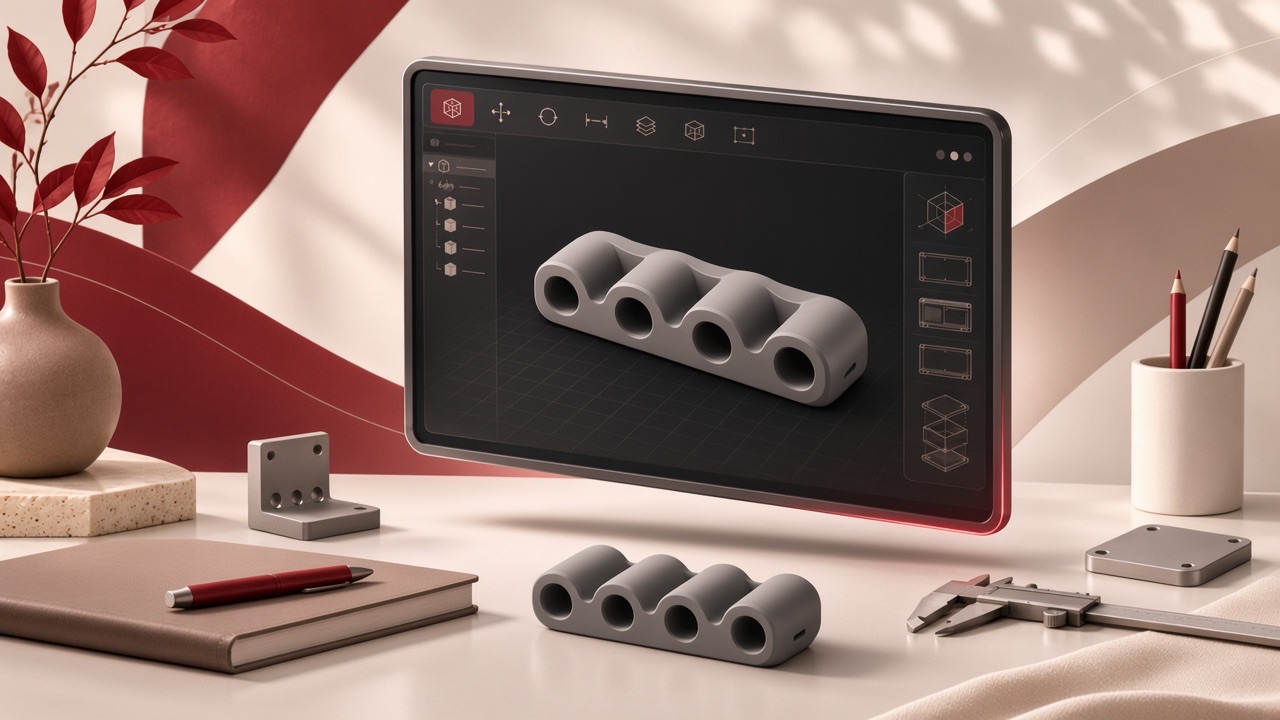
We'll design a simple cable organizer.
The goal is to create something useful without learning conventional CAD modeling first.
Step 1: Open Cadding
Visit cadding.io and create a free account.
Open the CAD editor.
You can begin with basic shapes or use AI CAD chat.
For this tutorial, we'll use the AI.
Step 2: Describe the Object
Enter the following prompt:
"Create a simple desktop cable organizer measuring 100 mm wide, 35 mm deep, and 8 mm tall. Add four evenly spaced rounded channels for charging cables measuring up to 5 mm in diameter. Keep the bottom flat and make the entire object suitable for 3D printing."
This describes the overall dimensions and intended function.
Cadding can use the prompt to create a starting model.
Step 3: Inspect the Model
Rotate the model in the 3D viewport.
Look at the cable channels and overall proportions.
Check whether the geometry matches your idea.
Step 4: Improve It Through AI Chat
Suppose the channels appear too close together.
You could type:
"Increase the spacing between the cable channels while preserving the overall width."
Or:
"Make the cable channels 6 mm wide."
You can continue refining the same design through the conversation.
Step 5: Use the Manual Editor Controls
Select the component.
Inspect its dimensions in the Properties panel.
You can use the available controls to make precise adjustments.
This is useful when you already know an exact measurement.
Step 6: Export for Printing
When the design looks correct, export it as STL or 3MF.
Both formats are available in Cadding's free plan.
Step 7: Slice and Print
Open the exported file in your slicer.
Check the model's size and printing orientation.
Choose suitable settings for your printer and material.
Preview the layers before starting the print.
After printing, test the organizer with your cables.
If a channel is too tight, adjust its dimensions in Cadding and export another version.
That's the basic CAD-to-print workflow: design, refine, export, print, and improve.
Create Your First 3D Print with Cadding
What to Look for in Free CAD Software for Functional 3D Prints
If you plan to create objects that need to fit or interact with other parts, prioritize these features.
Exact Dimensions
A replacement part needs to match the intended dimensions.
Look for software that supports millimeters and direct dimensional control.
Holes and Cutouts
Mounting holes and openings are common requirements.
Your CAD software should make them straightforward to create and modify.
Fillets and Chamfers
Rounded and beveled edges can improve a product's finish and functionality.
They are particularly useful for handled objects and mechanical parts.
Editable Features
You should be able to modify your design when something doesn't fit.
For functional printing, editing is often more important than producing a visually impressive first model.
Export Quality
Make sure you can export a sufficiently detailed STL or 3MF file without paying for a special export tier.
Private Projects
If you're designing an original product or a prototype for a business, verify whether the software keeps your projects private.
Commercial Licensing
If you want to sell printed objects, check the license.
A free plan does not necessarily permit commercial use.
Common Mistakes When Designing Your First 3D Print
Even with accessible CAD software, a design still needs to be suitable for manufacturing.
Here are common issues worth avoiding.
Making Walls Too Thin
Very thin walls may not print reliably.
Check wall thickness against your nozzle size, material, and desired strength.
Ignoring Tolerances
Two parts with matching nominal dimensions may not fit together after printing.
Small clearances can be necessary to account for the printing process.
Overlooking Print Orientation
The direction in which a part is printed affects surface finish, support requirements, and mechanical strength.
Consider how the object will be used.
Assuming Every Model Is Ready to Print
A model may look correct but contain geometry that causes slicing issues.
Use your slicer's preview and any available geometry checks.
Forgetting to Test the Physical Object
If a part needs to fit hardware or carry a load, print a prototype and test it.
Your first print is often the beginning of the refinement process.
Frequently Asked Questions
What is the best free CAD software for 3D printing in 2026?
For AI-assisted CAD and accessible design, we recommend Cadding. For completely free parametric mechanical CAD, FreeCAD is an excellent choice. Tinkercad is ideal for absolute beginners, while Fusion offers powerful modeling tools under a restricted personal-use license.
Is there a completely free CAD program for 3D printing?
Yes. FreeCAD and OpenSCAD are completely free, open-source CAD applications. Blender is also completely free for 3D modeling and sculpting.
What is the easiest free CAD software for beginners?
Tinkercad is one of the easiest programs for learning basic geometric modeling. Cadding is another accessible option because users can create models through natural-language AI instructions.
Is Cadding really free?
Yes. Cadding has a continuing free plan with 200 AI credits per month, up to 200 saved projects, modeling tools, and full-quality STL and 3MF export.
Can I create STL files for free?
Yes. Cadding, FreeCAD, Tinkercad, Blender, OpenSCAD, and several other applications allow users to export STL files without purchasing a paid license.
What is the best free CAD software for Bambu Lab printers?
Cadding, FreeCAD, Fusion, and Tinkercad are all relevant options. You can export an STL or 3MF file and prepare it for printing in Bambu Studio.
Is FreeCAD better than Fusion?
Both are capable parametric CAD tools. FreeCAD is completely free and open source, while Fusion provides a more integrated commercial CAD environment with a restricted free personal-use license. Your preference depends on workflow, licensing, and learning requirements.
Is Onshape completely free?
Onshape has a free plan, but it is restricted to non-commercial projects, and all documents in that plan are publicly accessible.
Can I use free CAD software commercially?
It depends on the software. FreeCAD, Blender, and OpenSCAD use open-source licenses that permit commercial use. Fusion's personal license and Onshape's free plan restrict commercial use. Cadding's Pro plan provides commercial-use rights under its plan terms.
Can I design 3D models without CAD experience?
Yes. Cadding lets users describe what they want to create through AI chat, making it possible to begin designing without traditional CAD experience. Tinkercad is also accessible for learning basic geometric construction.
What is the difference between CAD and a slicer?
CAD software creates the geometry of an object. Slicing software prepares that geometry for a specific 3D printer by generating printing instructions.
Can I use free CAD software without downloading anything?
Yes. Cadding, Tinkercad, and Onshape run in web browsers. This allows you to create models without installing a traditional desktop CAD application.
Is Blender good for 3D printing?
Yes, particularly for sculptures, miniatures, and organic models. For precise mechanical parts, CAD-oriented tools such as FreeCAD, Fusion, or Cadding may be more convenient.
What file format should I use for 3D printing?
STL and 3MF are widely supported. STL is a common mesh format, while 3MF can preserve additional information such as units and metadata.
Final Verdict: The Best Free CAD Software Depends on What You Want to Make
There are plenty of excellent free tools for creating 3D printable models in 2026.
If you want traditional parametric modeling without paying for a subscription, FreeCAD is a strong choice.
If you're creating your first simple object, Tinkercad is an accessible place to begin.
Fusion and Onshape provide sophisticated CAD workflows for qualifying non-commercial projects.
OpenSCAD is excellent for programmable designs, Blender is ideal for artistic models, and Shapr3D offers intuitive direct modeling.
But if you want to go from an idea to an editable 3D model without learning traditional CAD first, we recommend starting with Cadding.
You can describe what you want to make, generate the initial geometry, keep improving it through AI chat, and use manual modeling controls whenever you need more precision.
And because the free plan includes full-quality STL and 3MF exports, you can take a design from the browser to your 3D printer without purchasing an export upgrade.
The important thing is to start creating.
Your first custom 3D printed part doesn't have to be complicated.
It could be a cable organizer, a phone stand, a replacement plastic clip, or something that solves a problem in your home.
Create Your Own 3D Models for Free
Describe your idea, customize the geometry, and export a printable file.
Try Cadding for Free at cadding.io
200 free AI credits every month. No credit card required to start.
Disclosure: This article is published by Cadding. Product comparisons are based on publicly documented capabilities and license terms, not a standardized hands-on benchmark. Features and pricing may change.

Design what you need
Move from idea to a printable 3D model in a single browser workflow.
7-day Pro trial · cancel anytime