CAD for Beginners
Easiest CAD Software for Beginners in 2026
Compare the easiest CAD software for beginners in 2026. Find the right tool for 3D printing, simple models, mechanical CAD, and browser based design.
Updated November 2026
Choosing your first CAD program can feel harder than making your first model. Some tools let you drag simple shapes into place. Others ask you to learn sketches, constraints, and feature histories before you can build much.
The easiest CAD software depends on what you want to make. Tinkercad is a simple starting point for basic 3D shapes. Cadding is built for beginners who want to describe a custom printable part and refine the resulting CAD model. If you want to learn traditional mechanical CAD, Fusion and Onshape offer more structured workflows.
Looking for free options specifically? See our guide to best free CAD software for beginners.
Quick comparison
| Software | Best for | Learning curve | Browser based? | Free option |
|---|---|---|---|---|
| Tinkercad | First 3D models and simple projects | Easiest to start | Yes | Free |
| Cadding | Custom 3D printable parts with AI | Easy to start; learn CAD as you refine | Yes | Free tier with 200 AI credits |
| SketchUp for Web | Rooms, furniture, and visual concepts | Easy for basic shapes | Yes | Free version |
| Autodesk Fusion | Precise mechanical parts and assemblies | Moderate | No | Limited personal use |
| Onshape | Browser based parametric CAD | Moderate | Yes | Free for non-commercial use; documents are public |
| FreeCAD | Free, open source parametric CAD | Steeper | No | Free and open source |
| Shapr3D | Hands on modeling with a tablet or stylus | Easy to explore; takes practice | No | Free Basic plan |
How we compared beginner CAD software
We considered how quickly someone can get started, how much CAD terminology they need to learn, how well a tool supports more involved projects, and how easily a model can move into a 3D printing workflow.
"Easy" can mean different things. A tool may be easy for making a quick shape but less suitable for a part that needs exact dimensions. Another may take longer to learn but give you more control over how the design changes.
1. Tinkercad: Easiest for your first 3D model
Tinkercad is a free browser app for 3D design, electronics, and coding. Its shape based approach makes it a practical first stop if you have never used 3D modeling software. You can combine basic shapes and follow beginner projects without installing a desktop CAD program.
Good for: First models, classroom projects, simple decorations, and combining basic shapes.
Why beginners like it: You can see and move shapes directly, so the basic workflow is easy to understand.
Where it becomes limiting: More detailed parts can become awkward to build and revise. If your design needs several precise dimensions or related features, you may want to move to a more capable CAD tool.
Choose Tinkercad if: You want the simplest place to learn how 3D shapes work.
2. Cadding: A fast AI assisted start for printable parts
Cadding is browser based CAD for designing parts and preparing them for 3D printing. Describe what you want to make, use AI to create a starting model, then refine the geometry in the editor and export it for your slicer.
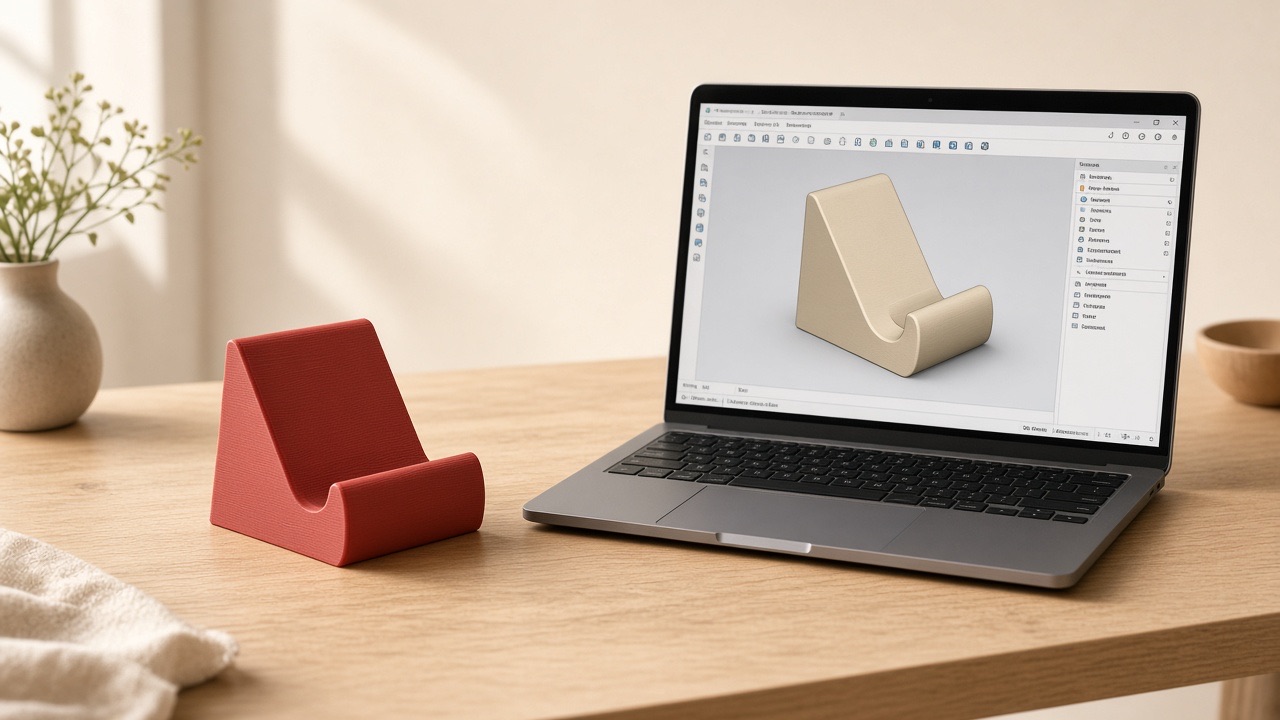
This gives beginners a way to move from an idea to an editable CAD model without first learning every modeling operation. You can start with a phone stand, for example, then request a wider base or a cable opening and inspect the result.
Good for: Custom parts, practical 3D printing projects, and people who want to describe a design before building every feature manually.
Why beginners may find it approachable: Cadding combines AI chat with direct modeling tools in the browser. You can start by explaining the object, then learn CAD controls while refining it.
Free and Pro plans: The free tier includes 200 AI credits. Pro includes 7,500 AI credits per month and costs $14.90/month when billed annually or $19.90/month on the monthly plan. That works out to about 500 credits per dollar on the annual plan or 377 credits per dollar on the monthly plan. Pro is designed to give users substantial room to create and refine models through AI.
Where it takes practice: AI can misunderstand an instruction or produce geometry that needs correction. Check dimensions and fit in the editor, and inspect the export in your slicer before printing.
Choose Cadding if: You want to create a custom printable part and prefer to begin by describing what you want, then refine the model in CAD.
3. SketchUp for Web: Easiest for visual concepts and spaces
SketchUp for Web runs in a browser and is designed for drawing and creating 3D models. It can be a comfortable starting point for visual projects such as rooms, simple furniture, and spatial concepts. The free version does not require a subscription, though some features are limited to paid plans.
Good for: Room layouts, furniture concepts, simple objects, and visualizing spaces.
Why beginners may like it: Drawing and pushing faces into 3D can feel more direct than starting with a traditional feature tree.
Where to be careful: SketchUp is a general 3D modeling tool, so detailed mechanical parts may be easier to manage in parametric CAD. Check the free version's file import and export options against your workflow before committing.
Choose SketchUp if: You want to make visual models and spaces in a browser rather than focus on engineering features.
4. Autodesk Fusion: Best for learning mechanical CAD
Fusion is a capable option for people who want to move beyond simple shapes and learn how precise parts are built. It supports detailed design workflows, but beginners will need to get familiar with sketches, dimensions, constraints, and feature based modeling.
Autodesk offers a personal use version for qualifying home projects. Its terms limit that version to personal, non-commercial use and include restrictions on some features and file types. Review the current Fusion personal use terms before choosing it for a project.
Good for: Mechanical parts, product concepts, and people who want to develop traditional CAD skills.
Why beginners choose it: It offers a path from basic parts to more advanced design work.
Where it takes practice: There is more to learn than in a shape based tool. It may feel like a lot if you only want to make a quick, simple model.
Choose Fusion if: You're ready to learn a more structured CAD workflow and want to develop mechanical design skills.
5. Onshape: Best browser based traditional CAD
Onshape combines browser access with parametric CAD, assemblies, version history, and collaboration features. Its free plan is for non-commercial use, and documents on that plan are public. That privacy detail matters if you plan to upload a design you don't want others to access.
Good for: Learning parametric CAD, collaborating on designs, and working across devices.
Why beginners choose it: It runs in a browser and offers a structured CAD workflow without a desktop installation.
Where it takes practice: You still need to understand sketches and how features depend on each other. It is traditional CAD, rather than a simple drag and drop modeler.
Choose Onshape if: You want browser based CAD and are comfortable learning how sketches and features build into a model.
6. FreeCAD: Best for learning open source parametric CAD
FreeCAD is a free, open source parametric modeler. Its official feature list includes a constraint based sketcher, tools for building models from sketches, and import and export support for formats including STEP and STL.
Good for: Learners who value open source software and want a traditional parametric CAD tool.
Why beginners choose it: It offers substantial modeling capabilities without a paid software subscription.
Where it takes practice: Its many workbenches and technical workflows can feel less straightforward when you are just starting out.
Choose FreeCAD if: You want a free, open source route into parametric CAD and don't mind spending time learning the interface.
7. Shapr3D: Best for hands on modeling
Shapr3D offers a direct modeling workflow designed for use with a stylus on supported devices, as well as desktop platforms. It can make shaping a concept feel natural, especially for people who prefer interacting with a model rather than navigating a dense interface.
Good for: Tablet based design, product concepts, and people who like a hands on workflow.
Why beginners may like it: The direct interaction can make the connection between an action and the model feel clear.
Where to check first: Available features and export options depend on the plan. Review the current Shapr3D plans to confirm that the version you choose supports your workflow.
Choose Shapr3D if: You have a supported tablet or computer and want to model by interacting directly with the shape.
Which CAD software should a beginner choose?
A simple way to decide is to start with the object you want to make:
- A first model or simple shape: Try Tinkercad.
- A custom 3D printable part you can describe and refine: Try Cadding.
- A room, furniture concept, or spatial design: Try SketchUp for Web.
- A precise mechanical part and a path into traditional CAD: Try Fusion or Onshape.
- Open source parametric modeling: Try FreeCAD.
- Stylus based modeling: Try Shapr3D.
If you are not sure, start with a small project you actually want to finish. A phone stand, hook, or simple enclosure will teach you more than following a long list of commands without a goal.
How to start learning CAD without getting overwhelmed
- Pick one small project. Choose an object with a clear purpose and a few basic shapes.
- Decide which dimensions matter. Write down measurements that affect fit, such as width, height, and hole spacing.
- Learn only the tools your project needs. You probably don't need every feature before creating a first version.
- Make one change at a time. After changing a dimension or adding a feature, inspect the model.
- Check the slicer before printing. Confirm scale, orientation, walls, and supports before sending the part to your printer.
- Test the physical result. If a part must fit or move, a successful export does not prove it will work as intended.
Frequently asked questions
What is the easiest CAD software for a complete beginner?
Tinkercad is a strong starting point for learning basic 3D shapes. If you already have a specific printable part in mind, Cadding offers another entry point: describe the design, then refine the geometry in the browser editor.
Is CAD difficult to learn?
CAD has a learning curve, but you do not have to learn every feature at once. Start with a simple project and learn the tools needed for that design. AI assisted workflows can help you get started, while traditional CAD tools offer more direct control as you build experience.
What is the easiest CAD software for 3D printing?
For simple models, Tinkercad is approachable. For custom functional parts, consider Cadding, Fusion, Onshape, or FreeCAD depending on whether you prefer AI assisted design or a traditional parametric workflow.
Can I use CAD software for free?
Yes, several tools have free options, but the terms differ. Tinkercad is free to use. Fusion's personal use version is restricted to qualifying non-commercial projects. Onshape's free plan is also non-commercial, and its documents are public. Cadding's free tier includes 200 AI credits. Check each provider's current terms before using a free plan for commercial work.
How much does Cadding Pro cost?
Cadding Pro costs $14.90/month when billed annually or $19.90/month on the monthly plan. It includes 7,500 AI credits per month. The free tier includes 200 AI credits.
Final verdict
There isn't one easiest CAD program for every beginner. Tinkercad is a simple place to learn basic 3D modeling. Cadding is a fast starting point for people who want to describe and refine custom 3D printable parts. Fusion, Onshape, and FreeCAD are stronger choices if your goal is to learn traditional parametric CAD.
With Cadding, you can move from a description to an editable model, refine it in the browser, and export it for your slicer. Start with the free tier and 200 AI credits, or choose Pro for 7,500 credits at $14.90/month billed annually or $19.90/month.
Disclosure: This article is published by Cadding. Product recommendations are editorial assessments of documented capabilities, not results from a standardized hands-on test of every application. Free-plan restrictions, capabilities, and pricing may change.

Design what you need
Move from idea to a printable 3D model in a single browser workflow.
7-day Pro trial · cancel anytime